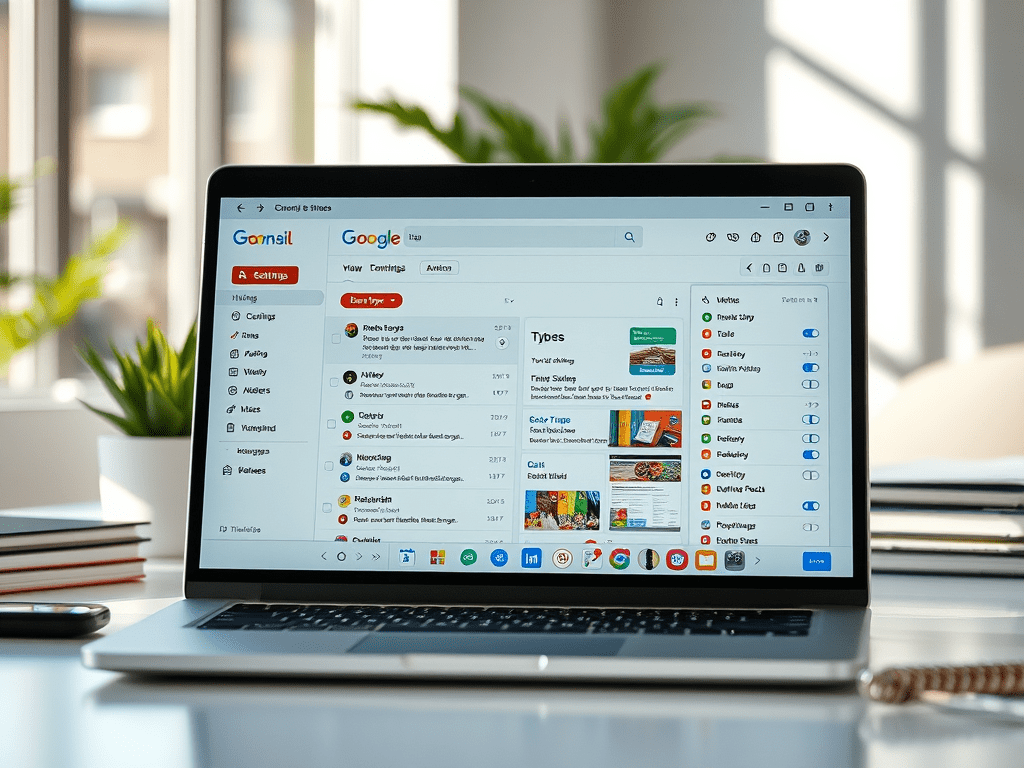
Gmail is one of the most widely used email services in the world — but most people only scratch the surface of what it can do. Beneath the surface of the familiar inbox lie dozens of powerful settings and features that can save you time, reduce stress, improve your productivity, and even completely transform the way you manage email. Despite Gmail’s ubiquity, many of these tools remain overlooked or underutilized. (Fast Company)
This article dives deep into the most impactful Gmail settings you probably haven’t used — and explains how to configure them to work for you. Whether you’re a casual user or someone who manages dozens or hundreds of messages a day, these advanced settings will help you take control of your inbox.
1. Inbox Type — Customize How Your Mail Is Organized
One of the first settings worth exploring is the Inbox type. Gmail doesn’t force you into a single inbox view — you can choose between:
- Default
- Important first
- Unread first
- Starred first
- Priority Inbox
- Multiple Inboxes
Each layout reorganizes incoming mail in a way that suits different workflows. For example, Priority Inbox splits your messages into sections like “Important and unread,” “Starred,” and “Everything else,” helping you focus on what matters most. (blog.google)
2. Tabs and Categories — Reduce Visual Clutter
Gmail’s tabs (Primary, Social, Promotions, Updates, and Forums) automatically categorize your messages. While this doesn’t change the raw content of your inbox, it significantly reduces visual clutter, so you’re not distracted by promotional emails or social notifications. You can enable or disable individual tabs and train Gmail by dragging messages between them.
3. Filters and Automatic Actions — Make Gmail Work for You
Filters are one of Gmail’s most underappreciated features. A filter can automatically:
- Archive messages
- Apply a label
- Mark as read
- Forward emails
- Delete unwanted mail
- Skip the inbox entirely
You can set filters based on sender, keywords, mail size, and more. Filters turn repetitive inbox chores into automated processes.
4. Labels — A Better Way to Organize Emails
Unlike traditional folders, Gmail’s labels allow you to assign multiple tags to a single email, giving you a flexible, powerful filing system. Labels can be color-coded, nested, and used with filters to organize your mail automatically. They serve as both categorization and quick navigation tools — especially when you have hundreds of conversations flowing in every day. (Google)
5. Stars, Importance Markers, and Message Highlights
Gmail’s star system allows you to mark important messages visually. You can even customize different types of stars and symbols. In addition, Gmail uses importance markers (the yellow tab icons) to predict which messages are important, based on how you interact with your mail (what you open, reply to, or archive). You can train Gmail over time by clicking these markers to fine-tune its understanding of your priorities. (Ayuda de Google)
6. Keyboard Shortcuts — Speed Up Your Workflow
Enabling keyboard shortcuts turns Gmail into a productivity powerhouse. Once activated, you can quickly perform almost every email task — reply (r), archive (e), move to next message (j), mark as unread (Shift + u), compose new email (c), and more — without lifting your hands from the keyboard. Power users often report saving hours per week just by learning a handful of these shortcuts. (Google Workspace)
7. Undo Send — Reclaim Mistakes Instantly
How often have you hit send and immediately regretted it? Gmail’s Undo Send feature gives you a short window (up to 30 seconds) to undo a sent message. This setting is a lifesaver for typos, wrong recipients, or last-second corrections. (Reddit)
8. Send and Archive — One-Click Cleanup
This setting adds a Send & Archive button to your reply window. With one click, Gmail sends your reply and archives the thread, keeping your inbox clean and focused on active conversations. For people who aim for “inbox zero,” this feature is a game changer.
9. Snooze Emails — Delay Until It’s Relevant
Sometimes you don’t need to act on an email now, but you will tomorrow or next week. Gmail’s Snooze feature lets you temporarily remove messages from your inbox and bring them back at a scheduled time — just when you need them.
10. Smart Replies and Smart Compose — AI-Assisted Writing
Gmail’s Smart Replies offers short, suggested responses based on the context of the email, while Smart Compose helps you finish sentences as you type. These features leverage machine learning to save you time on routine messages and make your writing faster and more consistent.
11. Email Scheduling — Perfect Timing Every Time
The Schedule Send feature lets you choose exactly when your email should go out — ideal for reaching people in different time zones or ensuring important messages land at the right moment.
12. Confidential Mode — Enhanced Privacy
For sensitive content, Gmail’s Confidential Mode restricts forwarding, copying, downloading, or printing of messages. It can also enforce expiration dates and require passcodes for access — making it useful for sensitive and time-limited communications.
13. Offline Mode — Work Without Internet
Gmail’s Offline Mode lets you read, respond to, and archive emails without an internet connection. Changes sync automatically once you’re back online — perfect for travel or flaky connectivity.
14. Multiple Inboxes — Advanced Workflow Views
If you handle a lot of categories or urgent emails, Gmail’s Multiple Inboxes lets you create custom panes where specific filtered messages appear separately. This gives you a dashboard-like view where your starred messages, urgent threads, drafts, and labels can all appear side-by-side — without losing the main inbox context.
15. Notification Controls — Only Alert for What Matters
Gmail’s notification settings let you choose:
- All new mail
- Only important mail
- No notifications
This is essential if you want to reduce distraction while still staying informed about priority messages.
16. Smart Features and AI Tools — Next-Level Email Management
Gmail continues evolving with AI-driven tools that go beyond basic settings:
- AI Inbox / AI summaries can turn your inbox into a contextual to-do list.
- Emoji reactions let you respond non-verbally to messages.
- Manage subscriptions helps you declutter by showing subscription frequency and one-click unsubscribe options.
These new tools reflect how Gmail is becoming more proactive — helping you manage your tasks, not just your messages.
17. Security and Privacy Controls
Gmail’s security settings — like 2-step verification, suspicious activity alerts, and app-specific passwords — help protect your account from unauthorized access. You can also control how Gmail uses smart features and AI assistance to safeguard your privacy. (Note: some users choose to disable certain smart features for privacy reasons.)
18. Third-Party and Extension Integrations
Finally, Gmail’s settings allow you to integrate third-party productivity extensions and tools such as task managers, CRM connectors, or advanced filtering tools — transforming Gmail into the central hub of your digital workflow. These integrations can automate repetitive tasks, sync with calendars, or surface actionable insights.
Conclusion — Gmail is More Than Just Mail
Most users think of Gmail as a simple inbox — but with the right settings, it becomes a powerful productivity platform. By customizing how Gmail organizes, prioritizes, and even generates content, you can dramatically reduce the time you spend managing email and increase your focus on the work that truly matters.
Start with one or two of these settings today — and slowly build up to a fully optimized, personalized email system that works for you, not against you.
 Estrategias efectivas para tu negocio.
Deja un comentario